
October 16, 2026
 — ✦ —
— ✦ —
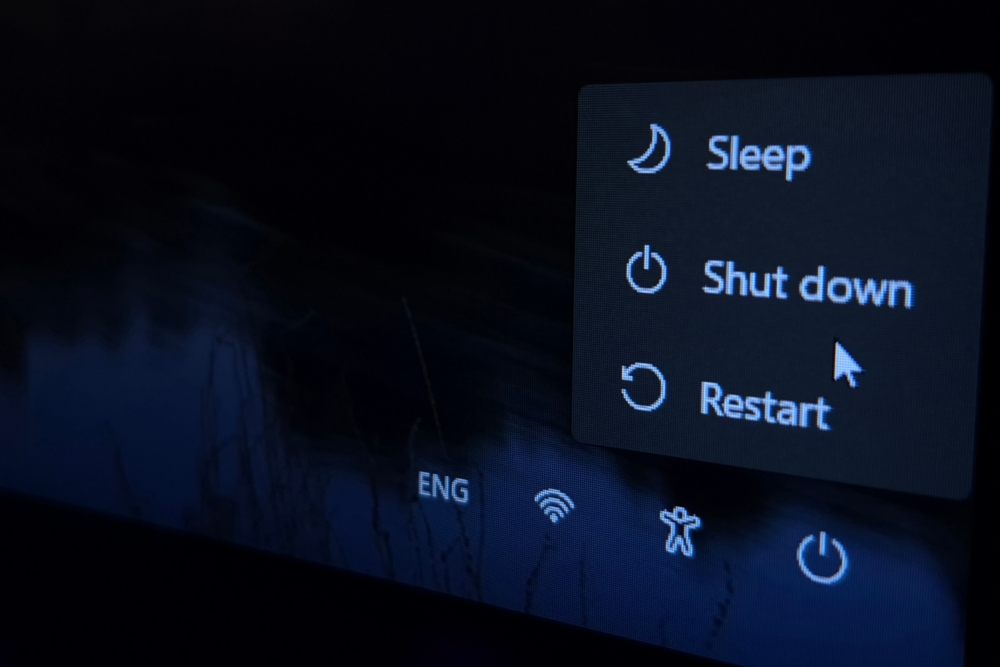
Restarting your computer helps by closing running programs, clearing their active memory, and reloading the operating system and background services. This can resolve temporary software problems, free up resources held by malfunctioning applications, and let certain updates finish installing. If your computer feels slow, freezes, or behaves unexpectedly, a restart can be a useful first troubleshooting step. However, it cannot repair failing hardware or permanently solve every recurring issue. When problems return after restarting, your IT provider should investigate the underlying cause.
Give Running Programs a Fresh Start
Throughout the workday, employees open browsers, email, documents, and business applications. Some programs continue running in the background even when they are no longer needed. A malfunctioning application may also remain stuck until you close it or restart the computer.
Microsoft recommends closing unused applications and browser tabs, then restarting if performance does not improve. Afterward, opening only the programs you need for work can reduce unnecessary demands on the computer.
Clear Active Memory
Your computer uses RAM to hold information that running applications need. Restarting ends those sessions and lets programs load again with a fresh memory allocation. This can help when software stops releasing resources properly or a process becomes unresponsive.
Clearing active memory does not delete saved documents or create more storage space on your hard drive. Employees should save their work first because unsaved changes can be lost when applications close.
Allow Updates to Finish Installing
Some operating-system and software updates require a restart to complete installation. Delaying that step can leave an update pending even after it downloads.
Microsoft notes that Windows updates can include fixes and performance improvements, and a device may need to restart to complete installation. Employees should follow their organization’s update instructions and choose an appropriate time to finish the process.
Reload Background Services
Computers rely on background services to support everyday functions such as printing, networking, and communication between applications. If a service becomes unresponsive, restarting can reload it and may restore normal operation.
For example, restarting might help with a temporary connection or printing problem on one computer. If several employees experience the same issue, however, the cause may involve shared equipment, a network connection, or an external service that needs separate troubleshooting.
Understand Why Sleep Is Different
Putting a computer to sleep usually preserves its current session so employees can resume work quickly. Applications and their existing state remain available when the device wakes up.
A restart closes that session and reloads the system. If you want to clear a temporary software problem, use the computer’s Restart option rather than closing the laptop lid or letting it sleep.
Save Your Work Before Restarting
Before restarting, save documents, finish important tasks, and check whether uploads or other operations are still running. Use the operating system’s normal Restart command whenever possible.
If a computer is installing updates, allow the process to finish. For shared computers, servers, or equipment supporting other employees, coordinate with your IT provider before restarting so the interruption can be managed.
Report Problems That Keep Returning
A restart may provide temporary relief without resolving the underlying issue. Repeated crashes, persistent slowdowns, and frequent disconnections deserve further investigation. Tell your IT provider what happened, which applications were open, and whether restarting changed the behavior.
Our Managed IT services include employee support, system monitoring, maintenance, and technology planning. We help investigate recurring problems and address device health issues across supported environments.
Keep Everyday Technology Working Reliably
Restarting is a useful troubleshooting step, but reliable business technology also needs ongoing attention. At Simplicity IT, we help San Diego County businesses keep computers supported, manage updates, coordinate vendors, and plan technology improvements around their operations and budget.
Contact Simplicity IT to discuss recurring computer problems and your business’s IT support needs. Schedule your Discovery Call here.